Search is the fastest way to find the exact assets you need within Asset Bank. You can use the same simple keyword search from the homepage, the header, or the Advanced Search page, it all works in the same way.
Just type one or more words related to the asset you’re looking for. If you use multiple words, Asset Bank will return results that include all of them by default, helping you quickly narrow things down.
Search isn’t case-sensitive, so there’s no need to worry about capital letters (except when using the special search operators covered later in this guide).
Searching for exact phrases
If you want to search for a specific phrase, put the words in quotation marks. This tells Asset Bank to return only items that contain the complete phrase exactly as you typed it.
Example:
Searching for "cat on the mat" will only show assets that include that exact phrase.
Note:
The default search algorithm will match variations of words like run → runs or running, this can affect phrase searches. A search for “dog runs” might also return items containing "dog running".
Search logic operators
You can fine-tune your search using words like AND, OR, and NOT, helping you include, combine, or exclude specific terms so you can get to the right assets faster. Please note they all need to be typed in uppercase for them to work correctly.
AND (find both terms)
Using AND between two words or phrases makes Asset Bank show only results that include both of them. It’s a simple way to narrow down your search.
Example:
Searching for cat AND dog will only show assets that include both the word “cat” and the phrase "dog" in their metadata.
By default, you don’t even have to type AND, just putting a space between the words does the same thing.
OR (find either term)
Using OR between two words or phrases tells Asset Bank to show results that include either one. This is great when there are a few ways to describe what you’re looking for.
Example:
Searching for cat OR dog will show items that mention “cat”, “dog”, or both.
NOT (exclude a term)
Using NOT before a word or phrase tells Asset Bank to skip any results that include that term. It’s handy for narrowing down your search by removing things you don’t want.
Example:
Searching for cat NOT dog will show items that mention “cat” but exclude anything with “dog”.
Putting it all together
You can use parentheses ( ) to group words or phrases together when combining multiple operators. This lets you control the order in which Asset Bank applies AND, OR, and NOT, so you get exactly the results you want.
Example:
Searching for (cat OR dog) AND "sunny day" will show items that mention "sunny day" and either cat or dog. Without the parentheses, the search might not give you the results you expect.
Think of parentheses like “brackets” that tell Asset Bank: handle this group first, then apply the rest of the search rules.
Wildcard searches
Wildcards let you search for words even if you’re not sure of the exact spelling or want to match multiple variations. Just keep in mind that wildcards can’t be used at the very start of a word, you need to type at least the first character.
Single-character wildcard
Use a question mark ? to stand in for any single character.
Example:c?t will find both cat and cut.
Multiple-character wildcard
Use an asterisk * to match zero or more characters.
Example:c* will find cat, catch, cuddle, and more.c*t will find all words that start with c and end with t, like cat and cut.
Special keywords
You can also use special keywords in text search fields to find assets based on metadata:
isempty
Adding isempty into a specific search field will tell Asset Bank to find assets that do not contain data for the attribute in question.
Example:
Typing isempty into a description field will then show you assets that do not contain any data for their “description.
* NOT isempty
Adding * NOT isempty finds any asset where the field has been populated with any content.
Example:
Typing * NOT isempty in a description field will then show you which assets in the system have their description populated.
Note, this only works if your default search operator is 'AND'.
If this does not work for your Asset Bank, another solution is to do the following:
This then returns all assets where the Title has a value.
untranslated
Typing untranslated into a search field will find assets that do not have a translated attribute associated with it (If Multi-language is enabled).
Example:
Typing untranslated in a title field will then show you which assets in the system do not have a translation for their title attribute.
Exclude from results
To make finding assets with empty metadata fields easier, we’ve added an “Exclude this value” checkbox next to each search field. Simply hover your cursor over a search field and the checkbox will appear. When ticked, it will filter the results to exclude any matching value.
Example:
Entering cat into a description field and then checking the “Exclude this value” will then show assets which do not have “cat” in their metadata.
Alternatively if you leave the search field blank and then tick the “Exclude this value”, it will return assets which do not have any metadata associated with the search input.
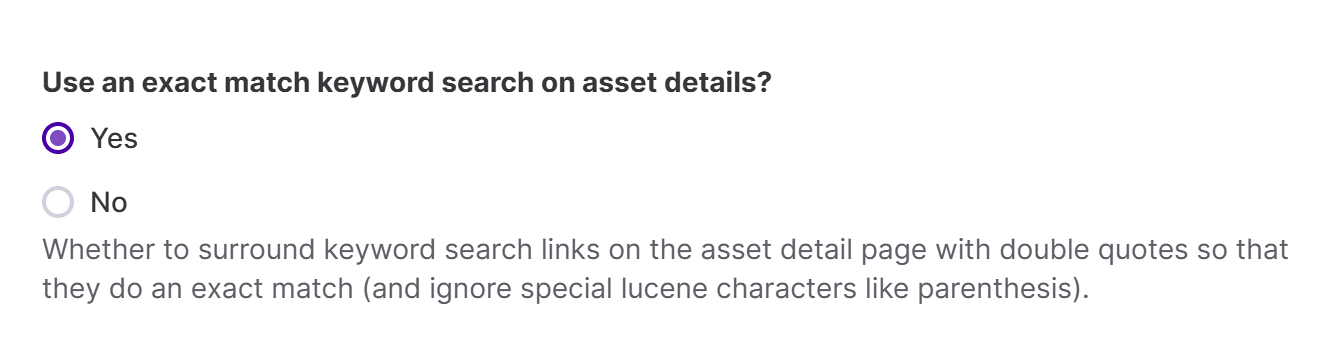
Exact match (for keyword pickers)
Often customers store key information in keyword pickers that are presented as clickable links.
If you want these values to only ever return other assets with the exact same string (instead of just including the same tags) then you can use this setting found in:
Config > System > Search Settings:
AI search features
Discover the right content faster with our new AI-powered search and tagging features. Search using natural language, find visually similar images, or start by dragging an image from your desktop. With easier access to a wider range of content, you’ll quickly uncover the best options for your campaigns, pitches, and projects.
Find out more.
Comments
0 comments
Article is closed for comments.